The key bar used to be ours to choose. Now you can lay out your own: which keys, in what order, one row or two.
Available in Term v26.2.0 and later.
Written
What the key bar is showing
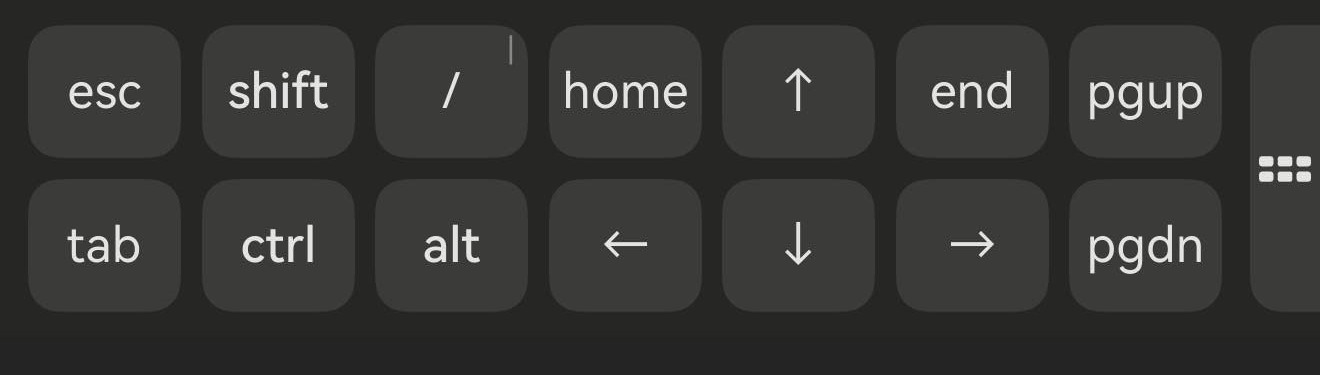
The strip above the terminal when the soft keyboard is up is the key bar. It carries the keys a phone keyboard lacks or buries — esc, tab, the arrows, ctrl. What lands on it comes from one of three places, all chosen in the same panel.
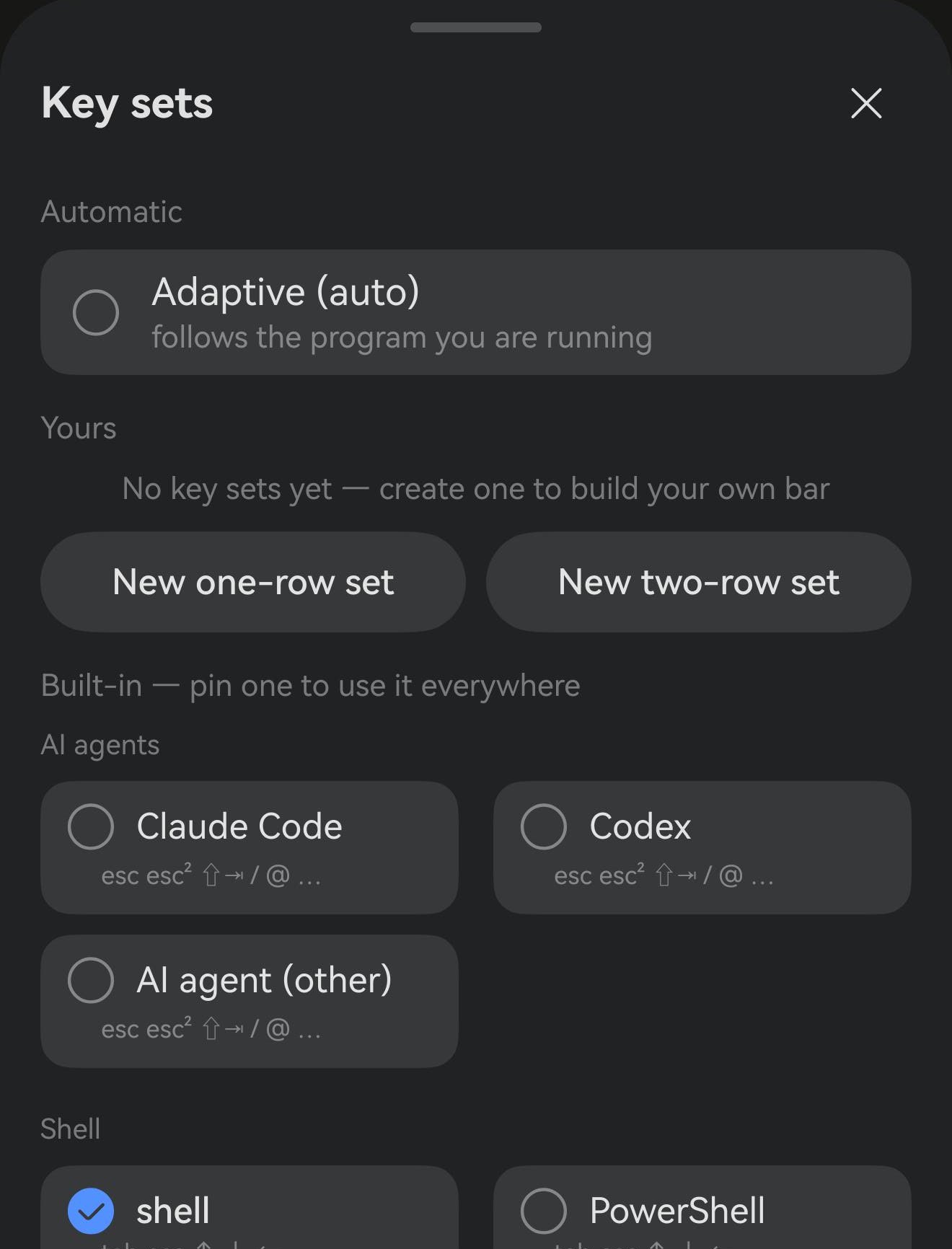
Adaptive (the default) — follows the program you are running. vim gets vim keys; Claude Code gets esc, esc², /, @. Nothing to manage.
Built-in palettes — the same sets adaptive draws from, but pinned so one of them stays put whatever you run. Pin tmux if you want tmux keys everywhere.
Your own sets — laid out from scratch. That is the rest of this page.
The Key sets panel: adaptive at the top, your own sets in the middle, pinnable built-ins below. It opens from the button at the far end of the key bar — one tap, and with a two-row set on a phone that button is a thin tab against the screen edge so the grid keeps the width.
One row or two
This is the one thing to decide before you start, because the two shapes do not merely differ in height — they behave differently.
One row — scrolls sideways, and is uncapped. Keys that do not fit are a swipe away, so there is no limit to hit.Two rows — a fixed 7x2 grid that does not scroll. Seven keys per row, all fourteen in view.
Use one row on a wide screen. A tablet, a 2-in-1, or a phone turned sideways already fits a dozen keys without scrolling, so a second row spends height you were not short of.
Use two rows if you want the Termux feel. Fourteen keys visible at once and one tap away, never a sideways swipe to find one. It costs a row of terminal height — which is the trade people who came from Termux tend to want.
Building one
Tap the key-set button at the far end of the key bar — one tap opens the panel. With a two-row set on a phone it narrows to a thin tab against the screen edge, because that grid cannot scroll and every bit of width it gives up goes to the keys.
Pick New one-row set or New two-row set. Both start seeded rather than empty, because editing something that already works beats starting from nothing.
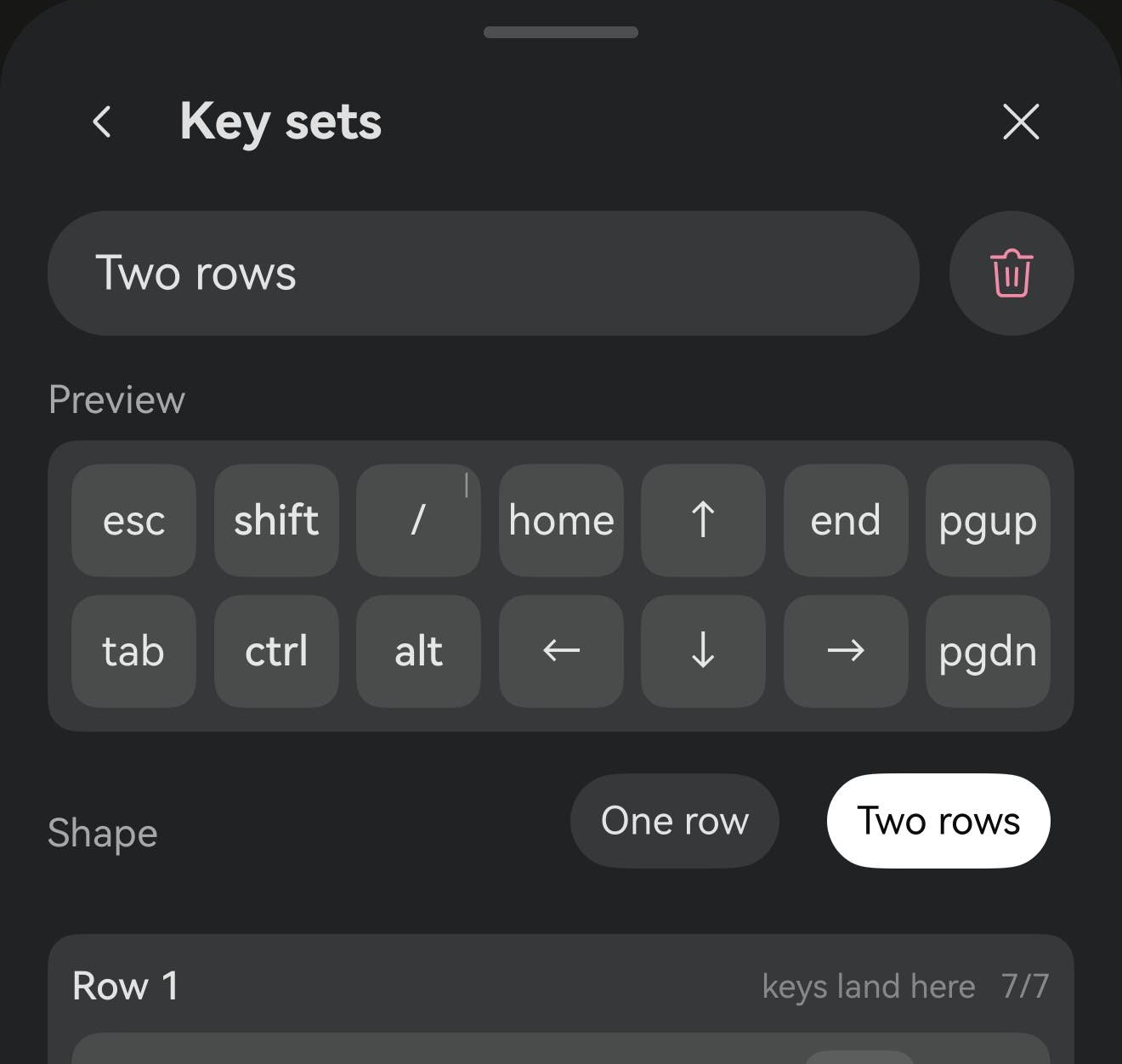
Name it. The name is only for you to recognise, and you can change it whenever.
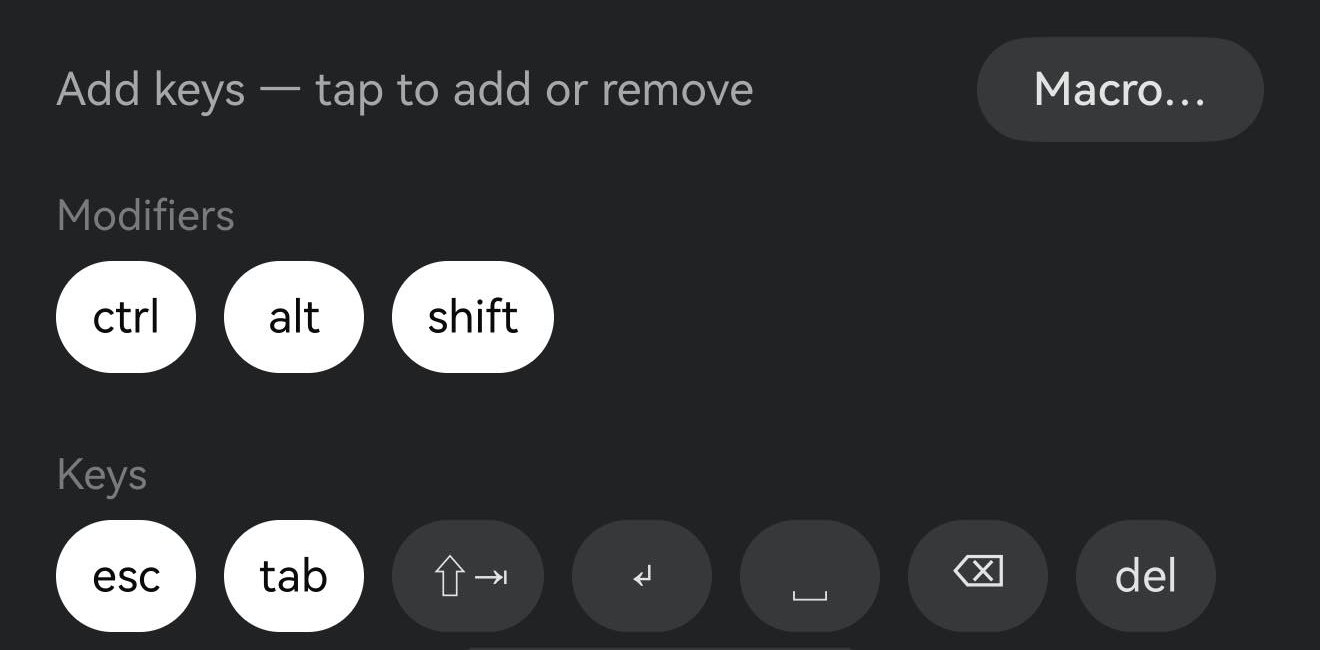
Tap keys in the catalog below: once to add, again to remove. Keys already in the set are the white ones.
The editor. Preview is the bar itself and updates as you go. Shape can be switched at any time — two rows to one always works, one to two asks you to remove keys first if you are over fourteen.
Every line in the list is one key: ≡ drags it to a new position, ✕ removes it, and ↑+ gives it a swipe-up key — flick up from the cap and it sends the second key instead. Pairing / with ? is a cheap way to buy a slot back.
The catalog is grouped: modifiers, keys, navigation, Ctrl combos, function keys, symbols. Macro… chains several keys and text into a single cap — one tap sends the lot.
Once a set is selected
The selection is global, not per host: every session and every tab uses it until you change it. Edits apply live — there is nothing to save, and no save button to look for.
To hand the choice back to Term, reopen the panel and pick Adaptive. Your sets stay where they are, just unused.
Worth knowing
A custom set is never added to. The built-in palettes are ours, so we keep them usable and guarantee things like the arrow keys; a set you placed cell by cell is yours, and Term will not quietly grow it — even if you delete every arrow. That is deliberate: the guard against an unusable set is that a new one starts seeded, not that the bar second-guesses you afterwards.
Which keys repeat when held is fixed, not configurable: the arrows, backspace, delete, page up and page down. A ⌫ you build yourself repeats exactly like the built-in one.