Walk the remote filesystem, move files both ways, fix one line of a config — without leaving Term or connecting twice.
Written
Opening it
Term ships an SFTP file browser. It is not a separate app and not a separate connection: it opens as a tab next to the host you are already connected to.
On a phone, long-press a host in the list and choose “Open SFTP”. On PC and tablet, right-click the host — same item. A SFTP tab then joins the terminal tabs at the bottom, and tapping between them switches between the files and the shell with nothing to redo on either side.
Browsing
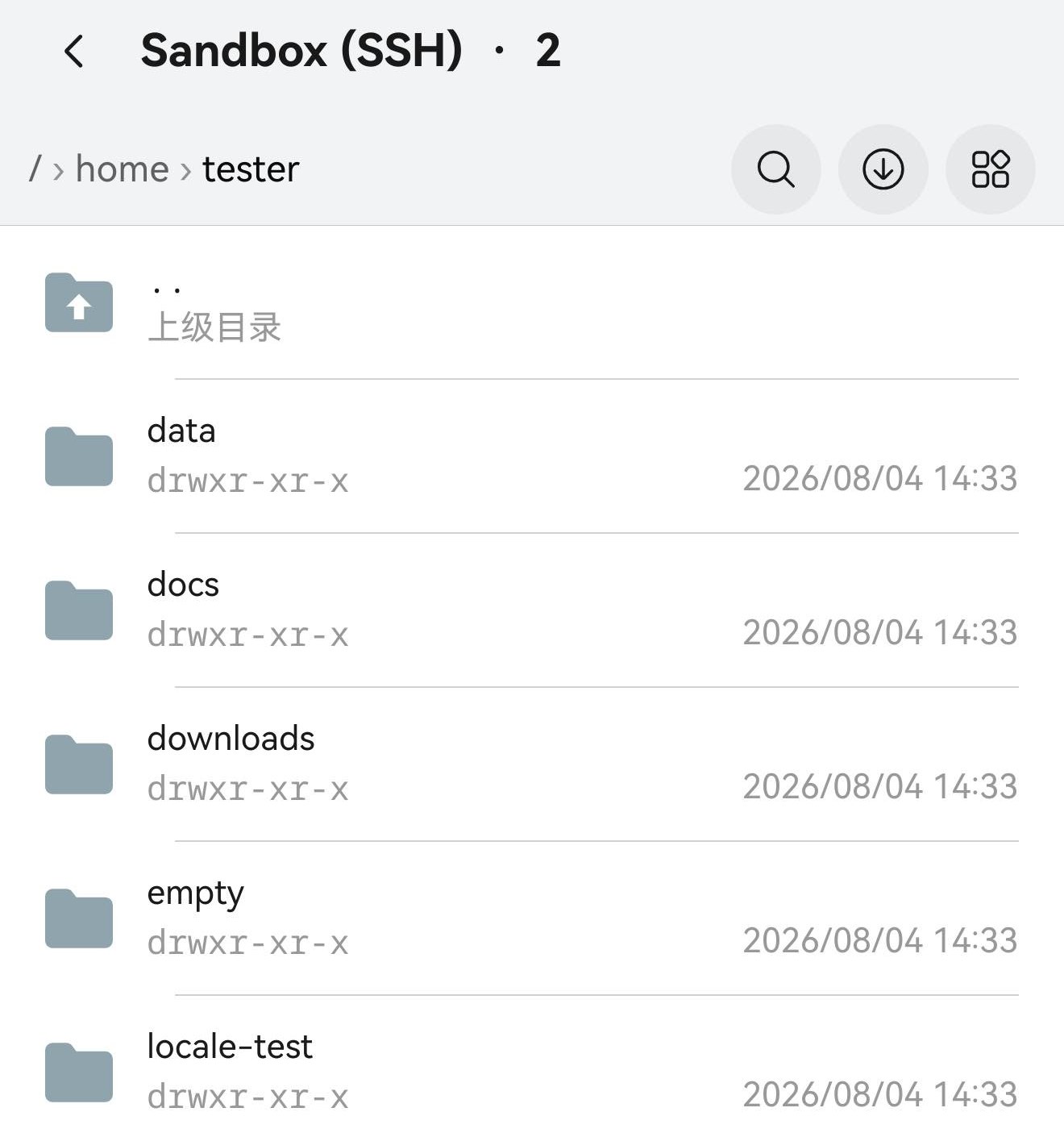
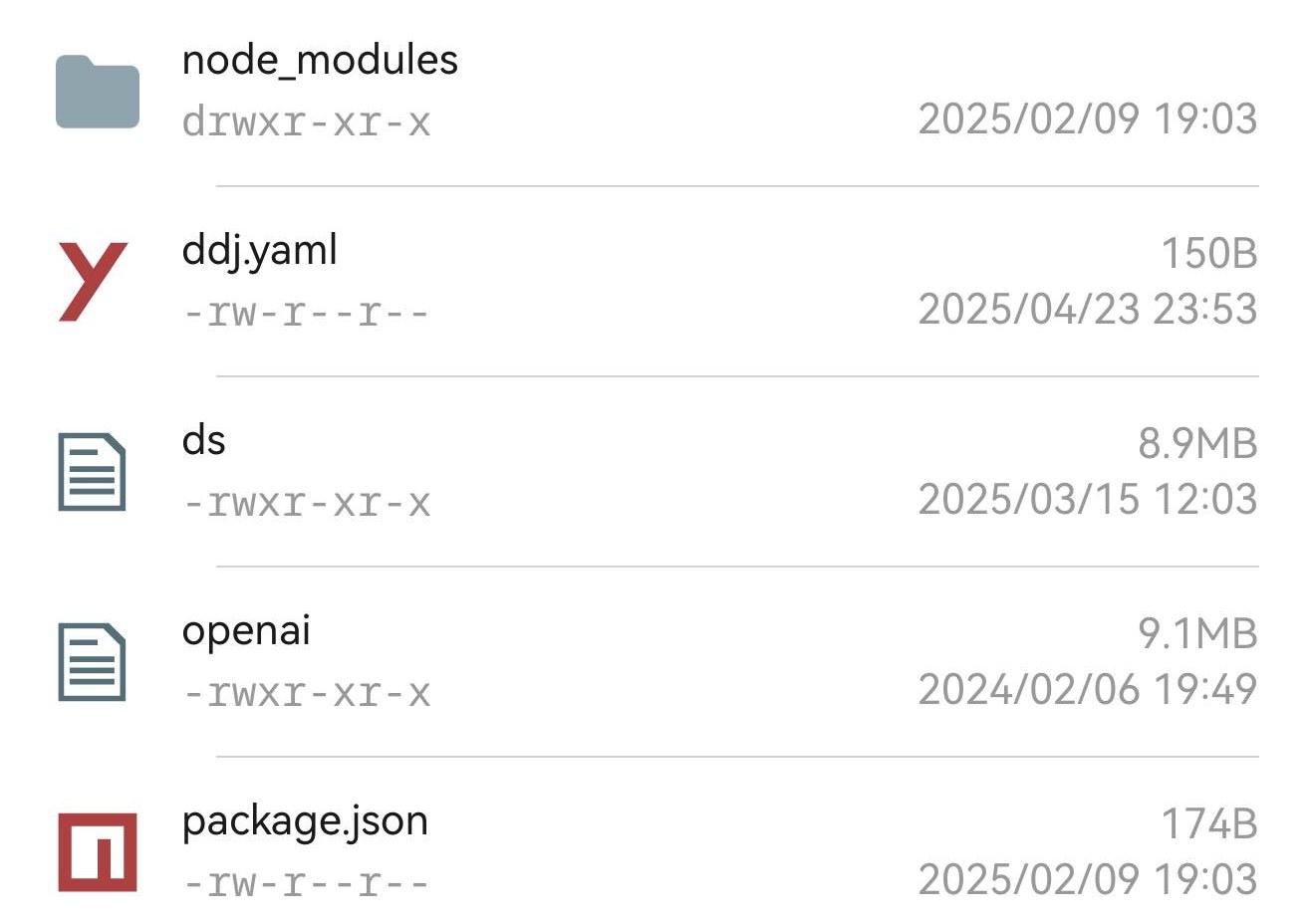
You land in the login user's home directory. The breadcrumb across the top jumps back to any segment you tap; in the listing folders come before files, every row carries permissions and a modified date, and files add a size and an icon picked from the extension. The .. row at the top goes up a level.
The three buttons top-right are filter, upload and menu. The menu sorts by name, size or modified date, toggles hidden files, and switches between list and grid. On a phone, pull down to refresh.
One SFTP tab — under the breadcrumb / › home › tester is the host's home directory, folders first, modified dates on the right. Filter, upload and menu are top-right.Files after folders — each file gets a size, its permissions and a modified date; the icon comes from the extension, so .yaml and .json do not look alike.
Uploading
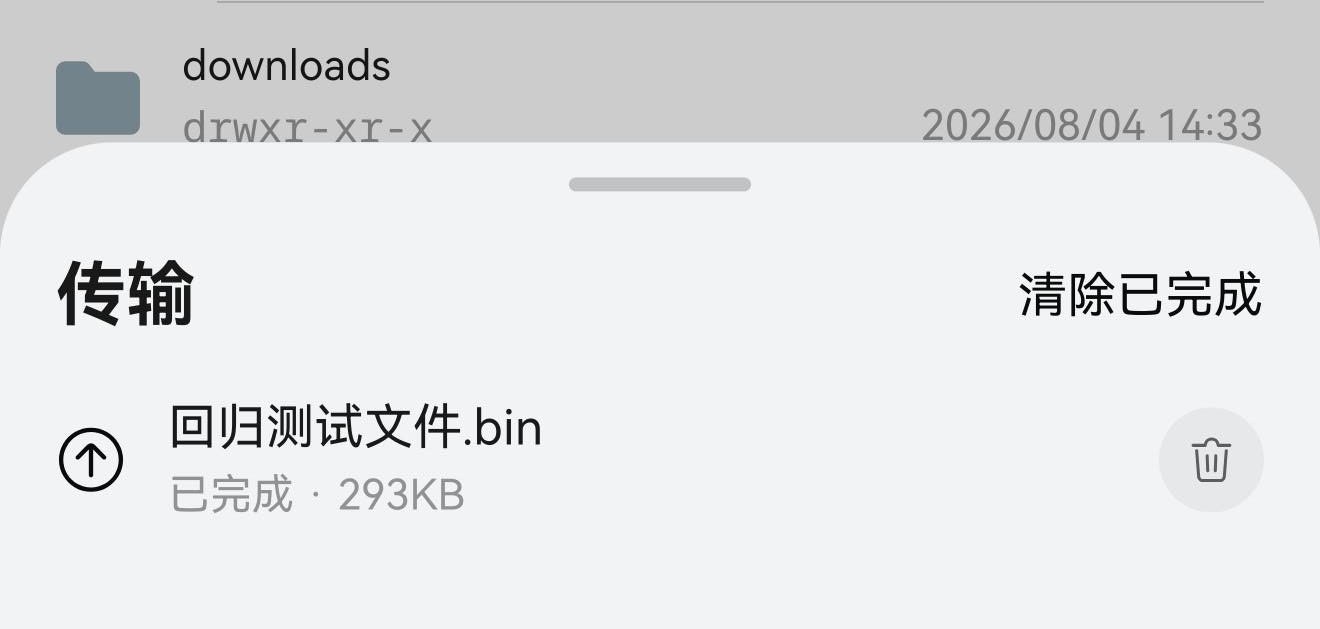
The upload button top-right opens the system file picker, and what you pick streams into the remote directory you are looking at. On PC you can also drop files onto the window. Everything in flight shows up in the “Transfers” sheet, one progress row per file, each cancellable on its own.
A failed upload cannot damage what is already there. Lose the connection mid-transfer, cancel it, or have it fail outright, and the file on the server is either the complete new one or the untouched old one — never a half-written file wearing the right name.
Names are preserved byte for byte, Chinese and other non-ASCII included.
The Transfers sheet — one upload finished, and 回归测试文件.bin landed on the server under exactly that name. “Clear finished” only takes away the completed rows.
Downloading, previewing, sharing
Tap a file, or pick Download from its row menu, and it streams into Term's own downloads. From there the row can preview it (handed to the system previewer), share it with another app, or save it to the device's public folders.
Two checks happen before a byte moves. A single file larger than Settings → Terminal → SFTP max download size is refused outright — that setting offers 64 MB, 256 MB, 1 GB (the default) and 4 GB, or unlimited. The batch also has to fit in the space Term has left on the device. Either way you get the answer up front rather than halfway through, with nowhere left to write.
Editing a text file in place
For a file up to 128 KB the row menu grows an “Edit” item: it opens in the built-in editor and saves straight back to the server. Fixing a line of nginx config, checking an .env, adding a crontab entry — no download-then-upload round trip.
On save Term first checks whether the server's copy changed after you opened it. If it did, nothing is silently overwritten: you get “File changed on the server” and decide whether the newer version should go.
Rename, new folder, delete
Rename
“Rename” in the row menu renames in place — the file is never sent again, so it is instant whatever the size. The same menu has “Details”, which gives the full path, size, permissions and timestamps.
New folder
“New folder” in the top-right menu creates one in the current directory, and it appears in the listing immediately. An empty directory says so — “This folder is empty” — instead of leaving blank space you have to interpret.
Delete
“Delete” asks first: “Delete “…” from the server? This can't be undone.” It is a delete on the server, and there is no recycle bin to fish it back out of — which is why the confirmation stays.
It rides the connection you already have
The SFTP tab does not dial out again: it rides the SSH connection this host already has. Nothing to authenticate a second time, no extra login session on the server — and if the host is reached through a jump host, the file transfers go down that tunnel too.
The trade is that it lives and dies with the terminal. When the connection drops the listing has nothing behind it, and rather than pretend otherwise the browser says Disconnected and offers a Reconnect button that puts you back in the directory you were in.
Connection lost — the listing gives way to this screen. Reconnect dials the host again and returns you to the directory you were in.