‹ Guides

Port forwarding

Plenty of useful things listen only on a server’s own loopback — a database, a dev server, an admin page deliberately not exposed to the internet. A forward carries one of those to the phone, over the SSH connection you already trust.

Written

Three directions

Which one you want is a question of which side binds the port, and that is the only hard part. The rule editor draws the flow as you type, so you can check it before saving:

direction
local     127.0.0.1:LP   ⇢  host  ⇢  DEST:DP
dynamic   127.0.0.1:LP   =  SOCKS5  ⇢  host  ⇢  *
remote    host:LP        ⇢  device ⇢  DEST:DP
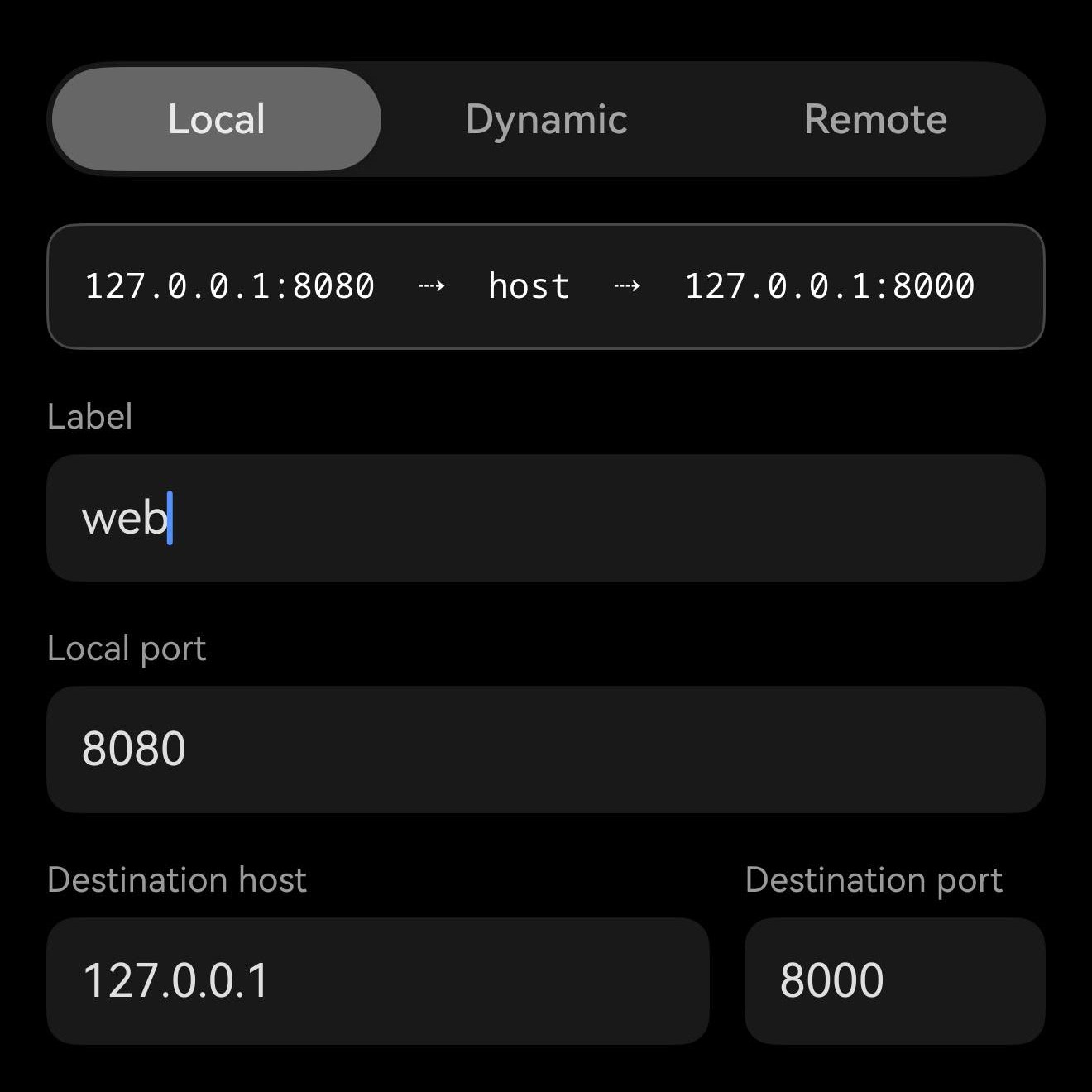
The rule editor: a Local/Dynamic/Remote segment above a live flow line reading 127.0.0.1:8080 → host → 127.0.0.1:8000.
The flow line rewrites as you type, so the direction is settled before you save.
Local — the phone binds a port; connections tunnel out to something the SERVER can reach. This is the common one: a Postgres on the server’s loopback, a dev server on :5173, a router page on the server’s LAN.
Dynamic — the phone binds a port and speaks SOCKS5, so each request picks its own destination. One rule instead of one per service; point a browser or an app at it.
Remote — the SERVER binds a port and tunnels back to something the PHONE can reach. The rare one, and the one to think twice about: you are publishing a port on the far end.
Setting one up

Long-press a host → Port forwards, then + to add a rule. Pick the direction, fill in the ports, and turn it on. Rules belong to the host and stay there; running or not is a separate thing you toggle.

There are two other ways in, for the two other moments you want them: Settings → Port forwards manages every rule across hosts with no terminal open, and inside a session the ⇄ chip opens the same list for the host you are on, with live ↑/↓ byte counters so you can see whether traffic is actually flowing.

“Start with session” brings a rule up automatically whenever you connect a terminal to that host.

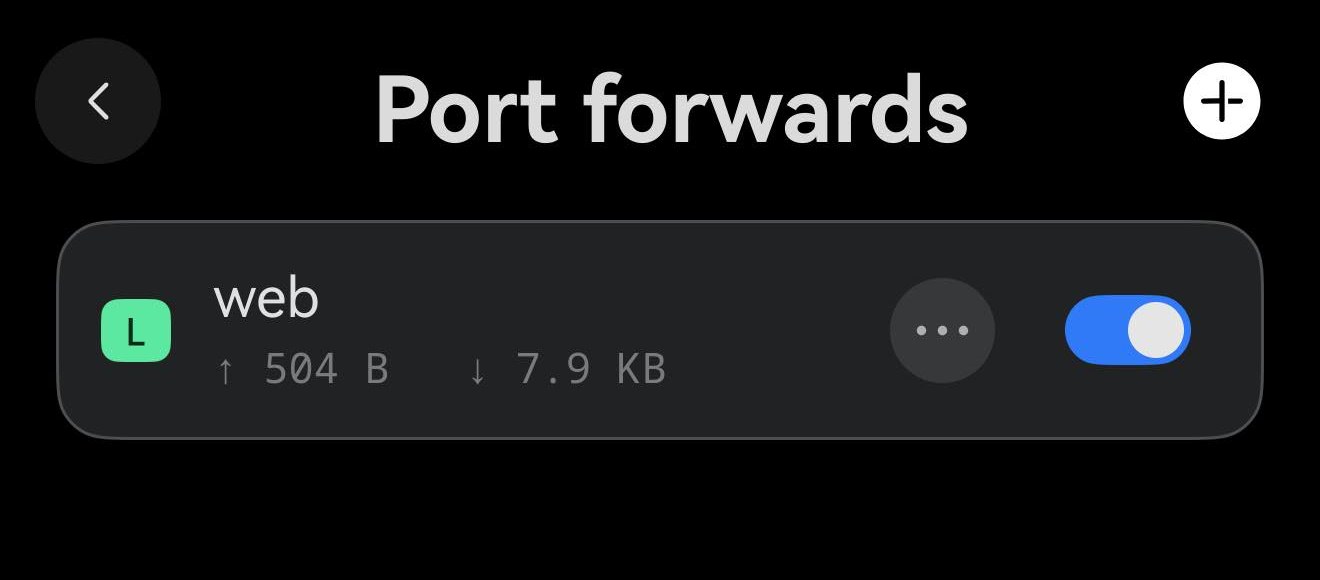
The host’s port-forward list: one rule named web, switched on, showing up and down byte counters and a ⋯ button.
A running rule, with the traffic actually going through it. The ⋯ holds the address and Open.
A forward is not a tab

Forwards run on their own connection to the host, not on a terminal tab. So a tunnel keeps running when you close the shell that started it, opening two tabs does not start it twice, and a rule runs at most once no matter how many sessions you have open.

The limit worth knowing
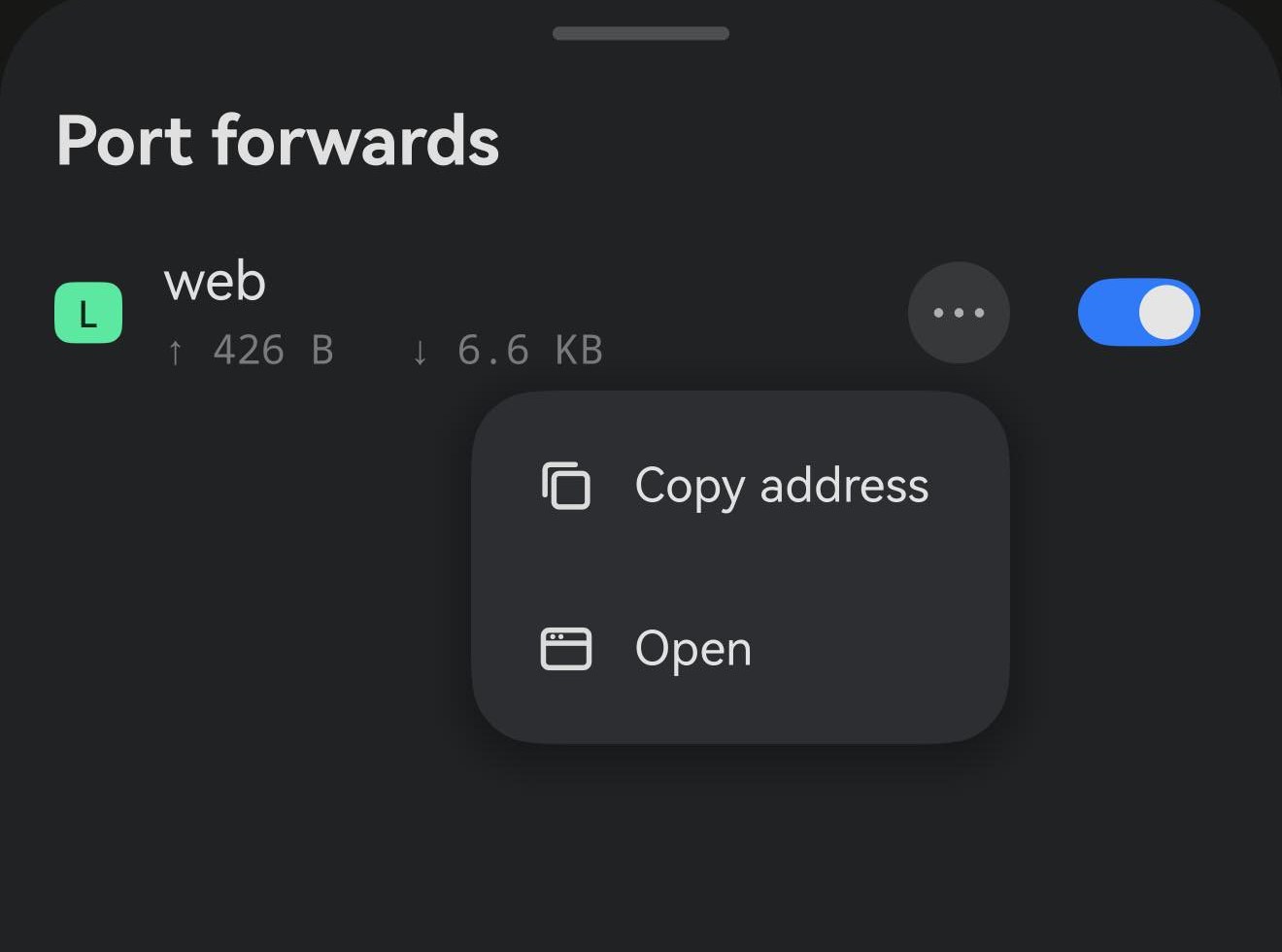
The forwards sheet over a terminal session: the running rule with byte counters, and its ⋯ menu open showing Copy address and Open.
The ⇄ chip in the header turns green while a forward is up. The row’s ⋯ holds the address and Open.
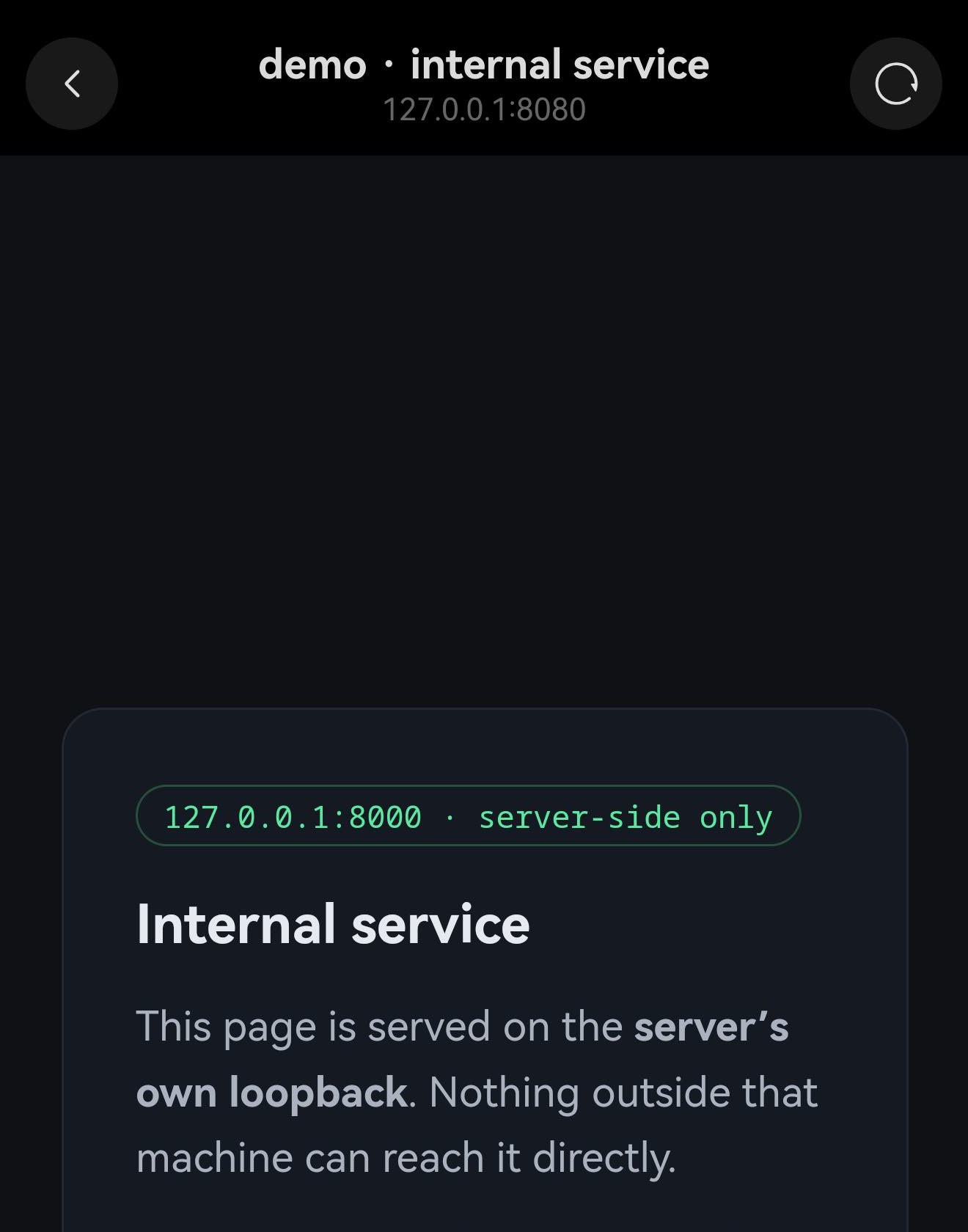
The in-app browser showing a page titled Internal service, served from the server’s own loopback, with 127.0.0.1:8080 in the header.
Open loads it in the in-app browser — so the SSH session stays in the foreground and alive.

A forward lives only while Term is running. HarmonyOS suspends a backgrounded app — the process is frozen, and a frozen process cannot carry a tunnel. Switch to another app and the forward stops.

There is one exception, and it is narrower than it sounds. When you leave the app with a live SSH or telnet TAB open, Term asks the system for a short grace period — about 70 seconds — so a quick trip out does not kill the session, and a forward riding along survives it too. That grace is limited to a handful of trips a day, and a low battery can shorten it.

A forward with no terminal tab open does not qualify for that grace at all: the request is only made when a live non-mosh tab exists. Nor does a mosh-only tab, since mosh is built to re-establish itself and does not need it. So if you want a tunnel to survive a glance at another app, keep an SSH tab open to the same host.

When you come back, Term checks its forwards and turns off any that died rather than showing a green light for a tunnel that is gone. Switch the rule back on and it reconnects.

For anything you need to stay up — a long transfer, a proxy you are actually browsing through — keep Term on screen. A floating window or split screen counts as on screen, which is the practical way to keep a tunnel alive while you use something else: Floating windows →

Notes

Local and dynamic forwards bind on 127.0.0.1 on the phone, so nothing else on your network can reach them — only apps on the device.

Deleting a host deletes its rules.

If a forward will not start, the error says which port and why: the usual causes are a port already taken on the phone, or a server that refuses remote binds (`GatewayPorts`).